List View Copy Cell - Copy Odoo Cells & Columns to Excel
Copy any cell or a whole column from an Odoo list view to the clipboard in one click, and paste it directly into Excel or Google Sheets.
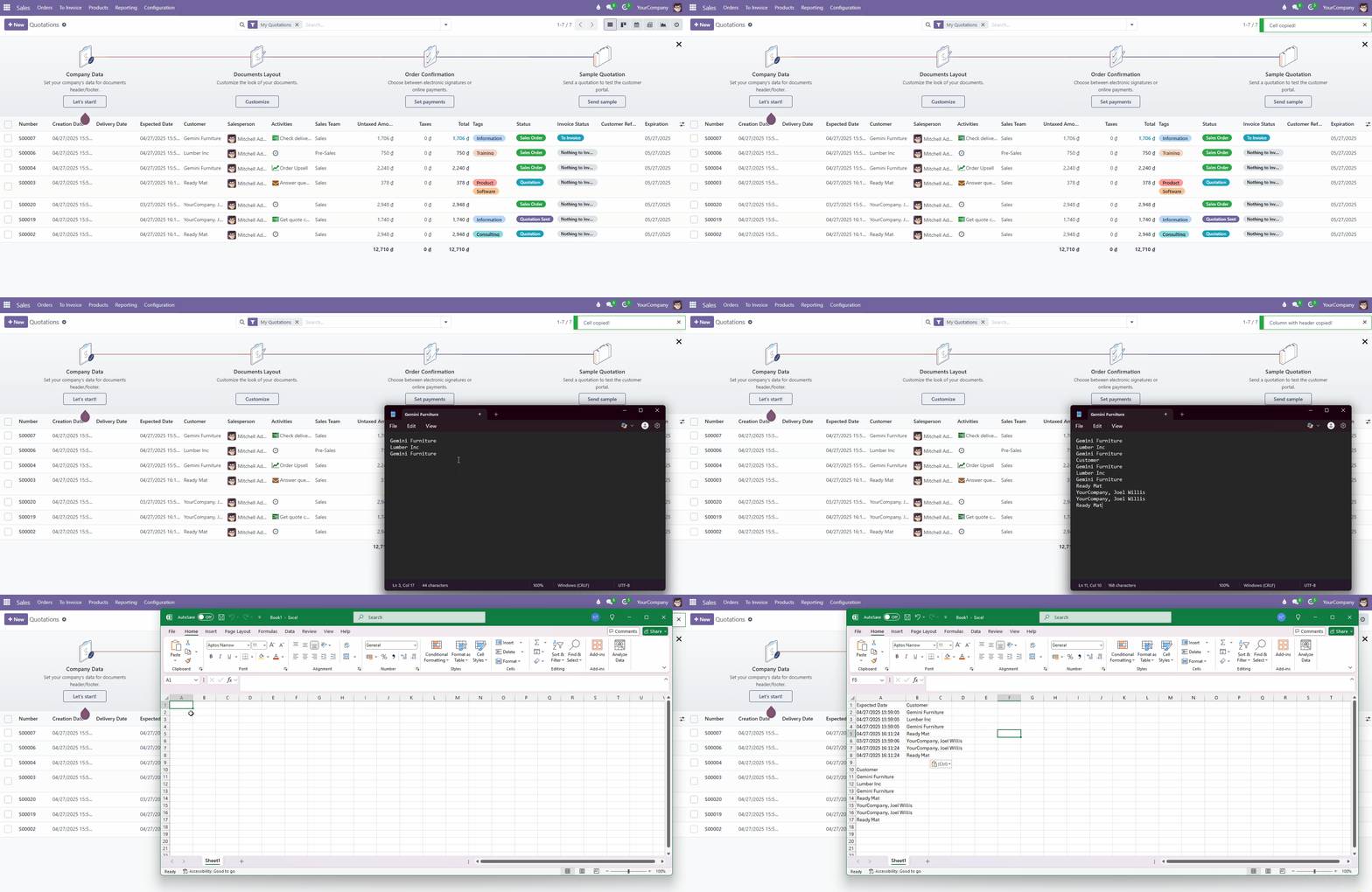
Need a customer's email, an invoice number or a column of amounts from an Odoo list view? In standard Odoo you open each record, select the text, go back - again and again. List View Copy Cell turns that into a single click.
Copy a single cell
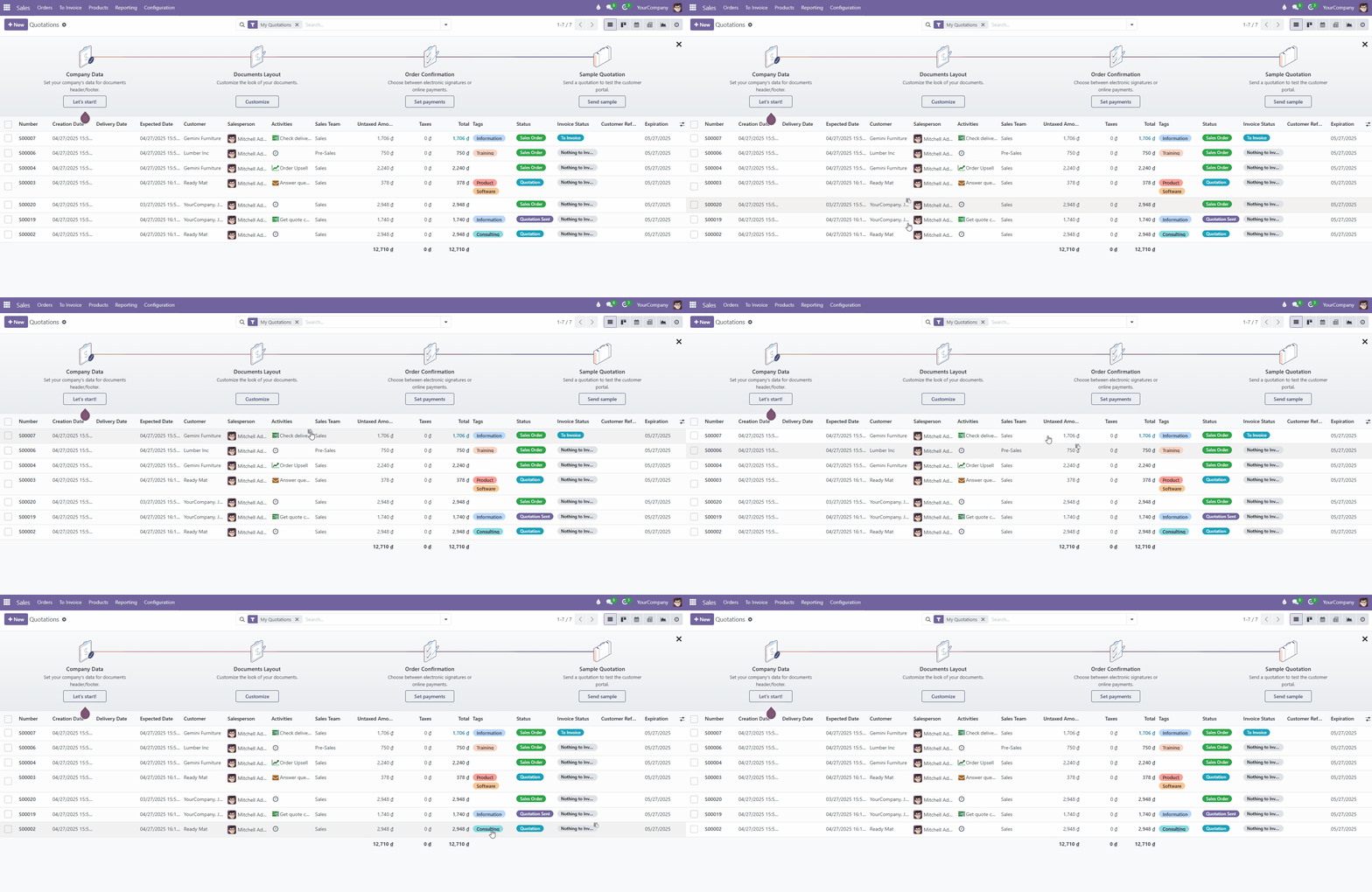
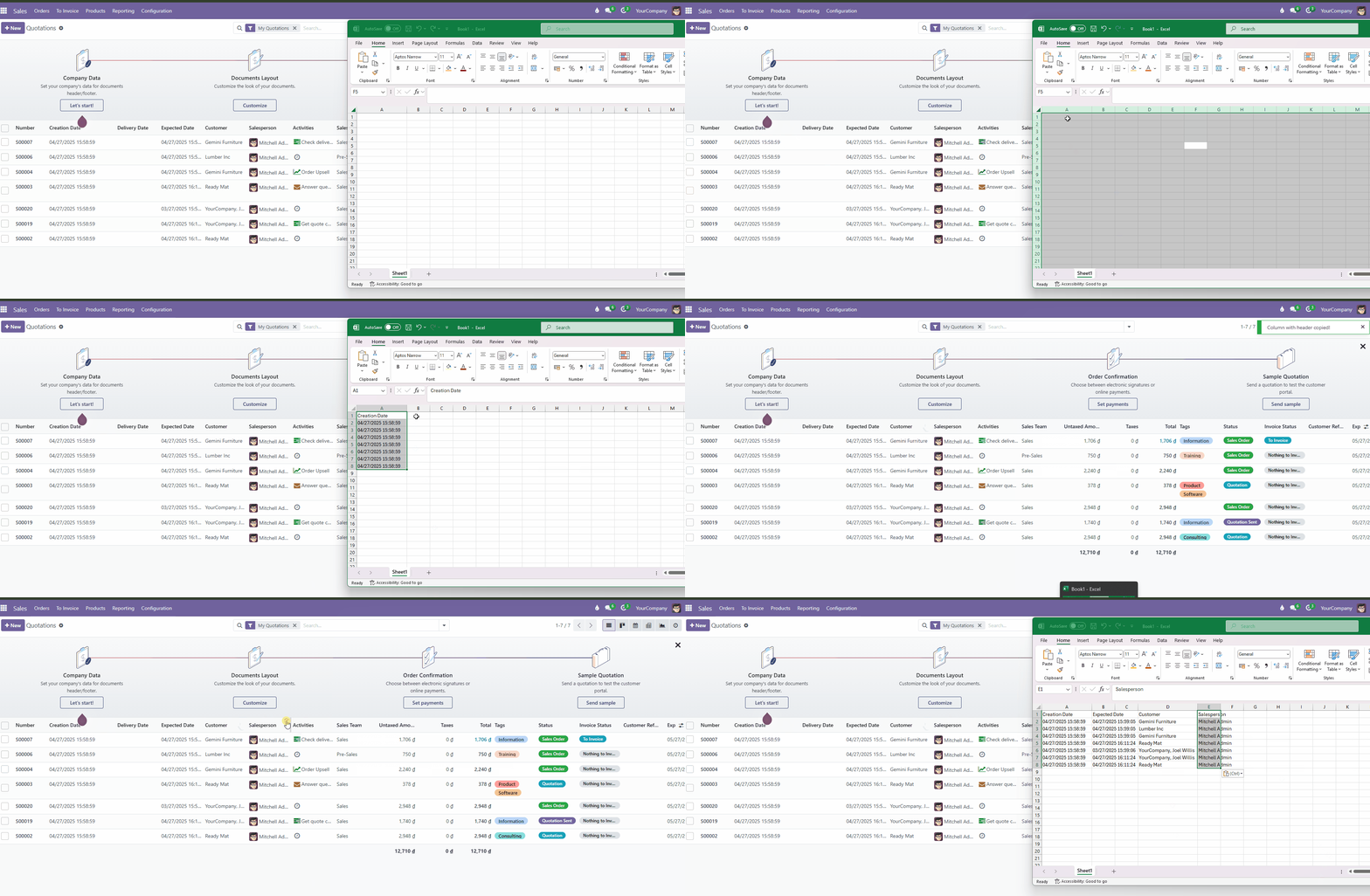
Hover any cell in a list view and a small clipboard icon appears. Click it - the value is in your clipboard.
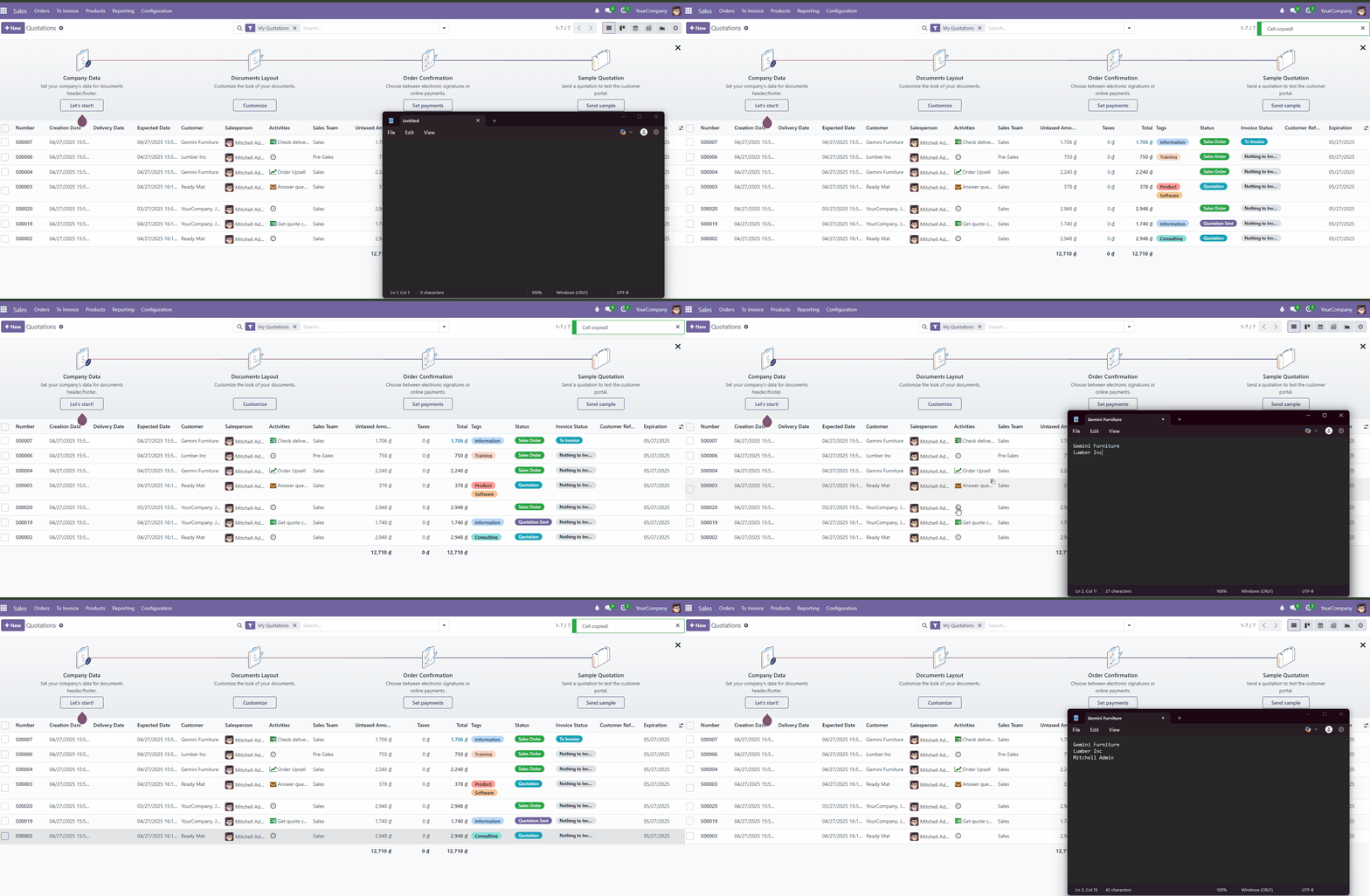
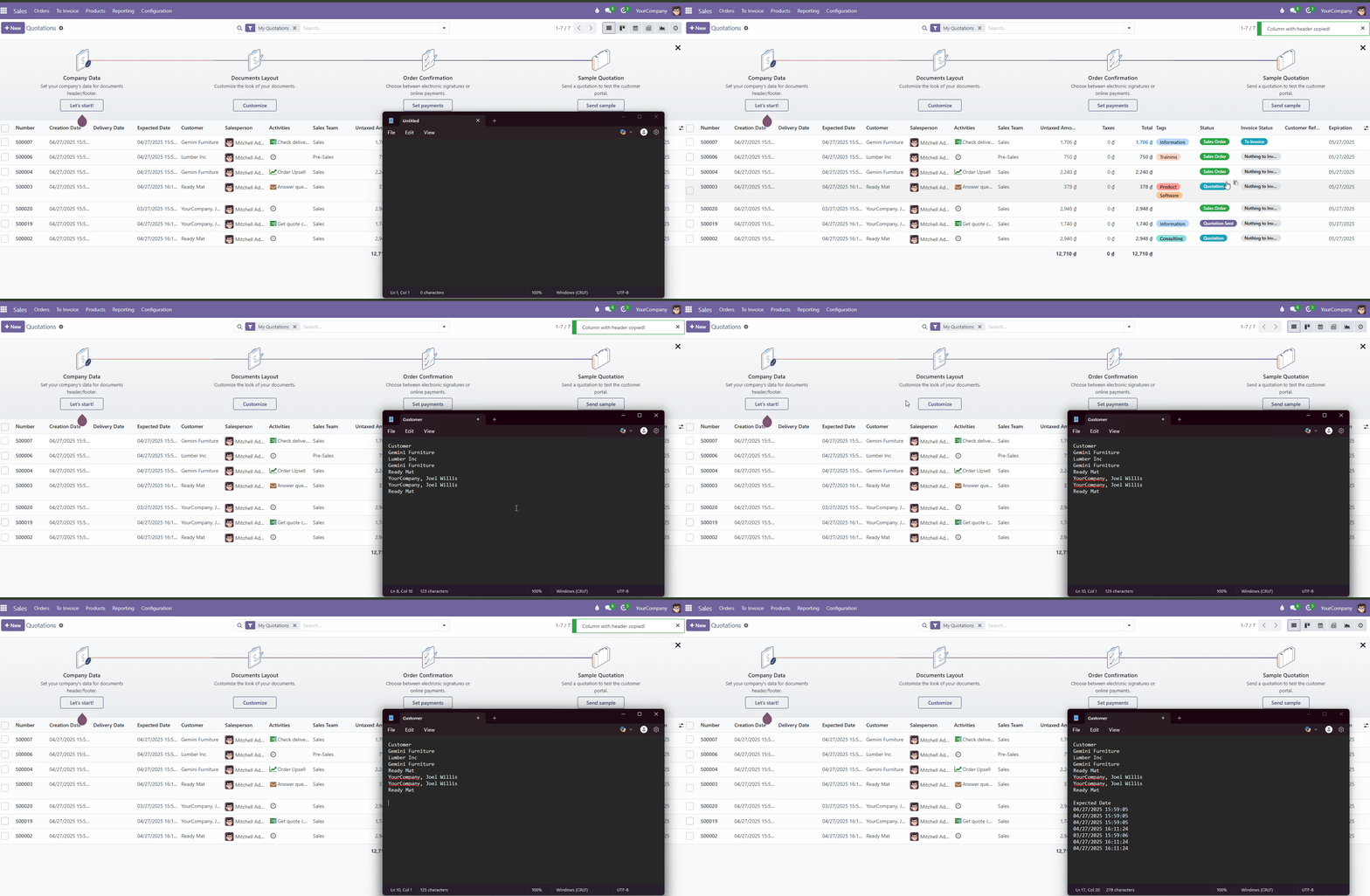
Copy a whole column
Click the column header to copy every value of that column at once.
Paste straight into Excel / Google Sheets
Copied data is formatted one value per line, so it drops neatly into a spreadsheet column.
Use cases
- Sales: copy a list of customer emails or phone numbers for a campaign.
- Accounting: copy a column of invoice amounts or references to reconcile in Excel.
- Inventory: copy product codes or lot numbers to share with suppliers.
- Everyone: grab a reference number for an email or chat without opening the record.
Why this app
- Works on every list view - no configuration.
- Lightweight (around 140 lines of code), no core files modified, upgrade-safe.
- Odoo Online, Odoo.sh and On-Premise.
FAQ
Which Odoo versions are supported?
Odoo 17.0 today, more versions are on the way. Check the store page for the latest list.
Does it need any setup?
No. Install it and every list view gets the copy feature.
Community or Enterprise?
Both.
Also check Many2many Tags Full Text - show long tags without "..." truncation.